Layout
The CONTROLLER_NAME.erb file is called the layout in Ruby on Rails. This file contains all of the HTML and embedded Ruby that is present in all rails rendered views of a captive portal. Any content that is present in the layout is visible on all the pages of the portal. A simplified version of the default portal layout follows.
<!DOCTYPE html PUBLIC "-//W3C//DTD XHTML 1.0 Transitional//EN"
      "http://www.w3.org/TR/xhtml1/DTD/xhtml1-transitional.dtd">
<html>

<head>

  <title>Captive Portal</title>

  <%= portal_stylesheet_link_tag %>

  <%= portal_javascript_include_tag %>

</head>

<body>

  <!-- renders view based on the action (e.g., sign up, login, etc.) -->
  <%= yield %>

</body>

</html>
There are four bits of ruby in the above example. Three of which are in the <head> element and include the CSS and javascript into your portal. The fourth is <%= yield %>. That very simple line of code calls the code for the individual views, as defined in the views folder, and places the result in that location.
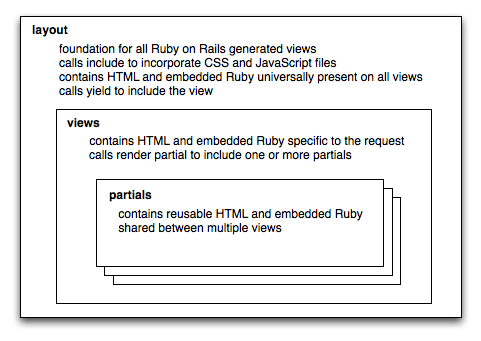
We will look at the individual views later, for now we will continue to work on the main layout. While this example is sufficient, it is pretty boring and contains no branding. Lets take the above example and include a company logo and some verbiage. First we need to copy an image into the images folder, simply drag a file, lets call it logo.png into the images folder inside your custom directory. For simplicity, lets only look at the <body>element.
<body> <%= portal_image_tag('logo.png') %>

  <p>Welcome to my captive portal!</p>

  <!-- renders the content of the page being viewed (e.g., sign up, login, etc.) -->
  <%= yield %>

</body>
With two more lines we now have a portal that is starting to look real. It is branded with your logo and has some text in it. The only line that needs further explanation is the line that contains portal_image_tag. That function creates an <img> tag that will link to the image specified. In the above example the location just links to the portal currently being viewed and logo.png is the file we placed in the images folder inside our portal.
Portal Helper Methods
The rXg provides helper methods for portal development:
<!-- Image handling with Portal Mod support -->
<%= portal_image_tag('logo.png', alt: 'Company Logo', class: 'img-fluid') %>

<!-- Render partials with Portal Mod override support -->
<%= render_portal_partial(:welcome_message) %>
<%= render_portal_partial(:login_options) %>
The portal_image_tag helper creates an <img> tag that links to portal assets. If a Portal Mod with an Image Override exists for that filename, the Portal Mod image will be served instead.
The render_portal_partial helper renders a partial template and automatically checks for Portal Mod overrides. If a Portal Mod with a matching Partial Override exists, the Portal Mod HTML content will be rendered instead of the default partial.
Development Best Practices
Development vs Production Modes
- Development Mode: Single user access, no caching, immediate updates
- Production Mode: Multi-user access, full caching, requires restart for updates
Critical: Always restart web server after portal changes in production mode.
Error Handling
Portal modifications include validation:
- Image files: JPEG, PNG, GIF, SVG, favicon support (20MB max)
- ERB syntax: Template validation prevents broken portals
- Controller actions: Ruby syntax validation
- Partial resolution: Automatic fallback to default templates
Performance Considerations
- Portal mods are cached in production mode
- Image overrides are processed through Active Storage
- Controller action mods use
eval- use sparingly - Rich text content is stored separately from HTML content